Built for the keyboard
bddr.ai is designed for power users who don't want to context-switch from the keyboard to the mouse. Two systems run side by side: a command palette for panel actions, and vim-style chord prefixes for navigation.
Command palette
⌘K (or Ctrl+K on Windows/Linux)
Press ⌘K anywhere on an Amazon Advertising Console page. The palette opens with a fuzzy-search input and lists every available action.
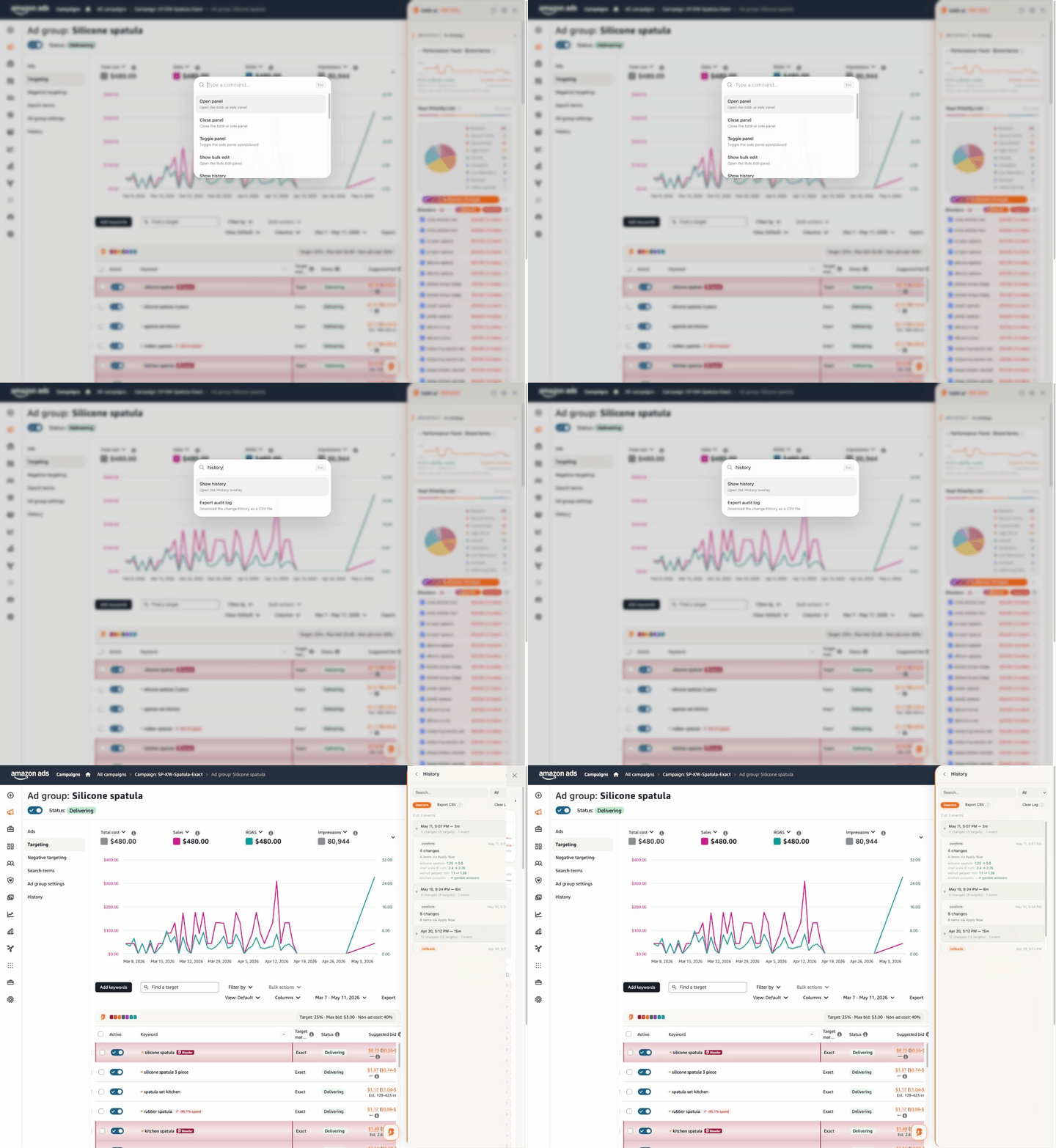
- Open panel
- Open the bddr.ai side panel.
- Close panel
- Close the bddr.ai side panel.
- Toggle panel
- Toggle the side panel open/closed.
- Show bulk edit
- Open the Bulk Edit panel (Pro feature).
- Show history
- Open the History overlay.
- Show settings
- Open Settings.
- Start guided tour
- Re-run the setup wizard and panel tour.
- Show What's New
- Force-show the What's New card in the panel.
- Report issue
- Export diagnostics and open a support email.
- Quick Optimize
- Run AI Optimize across all high-confidence tiers on the current page.
- Export audit log
- Download the change history as a CSV file.
- Export diagnostics
- Download a diagnostics JSON for support.
Commands change as we ship. Source of truth: CommandPalette.tsx in the extension.
Navigation chords (Jump Rail)
Press g to arm a chord, then a second letter to navigate. Global chords fire from any supported page — even without a focused row. Per-entity chords require a focused row (use j / k to focus one).
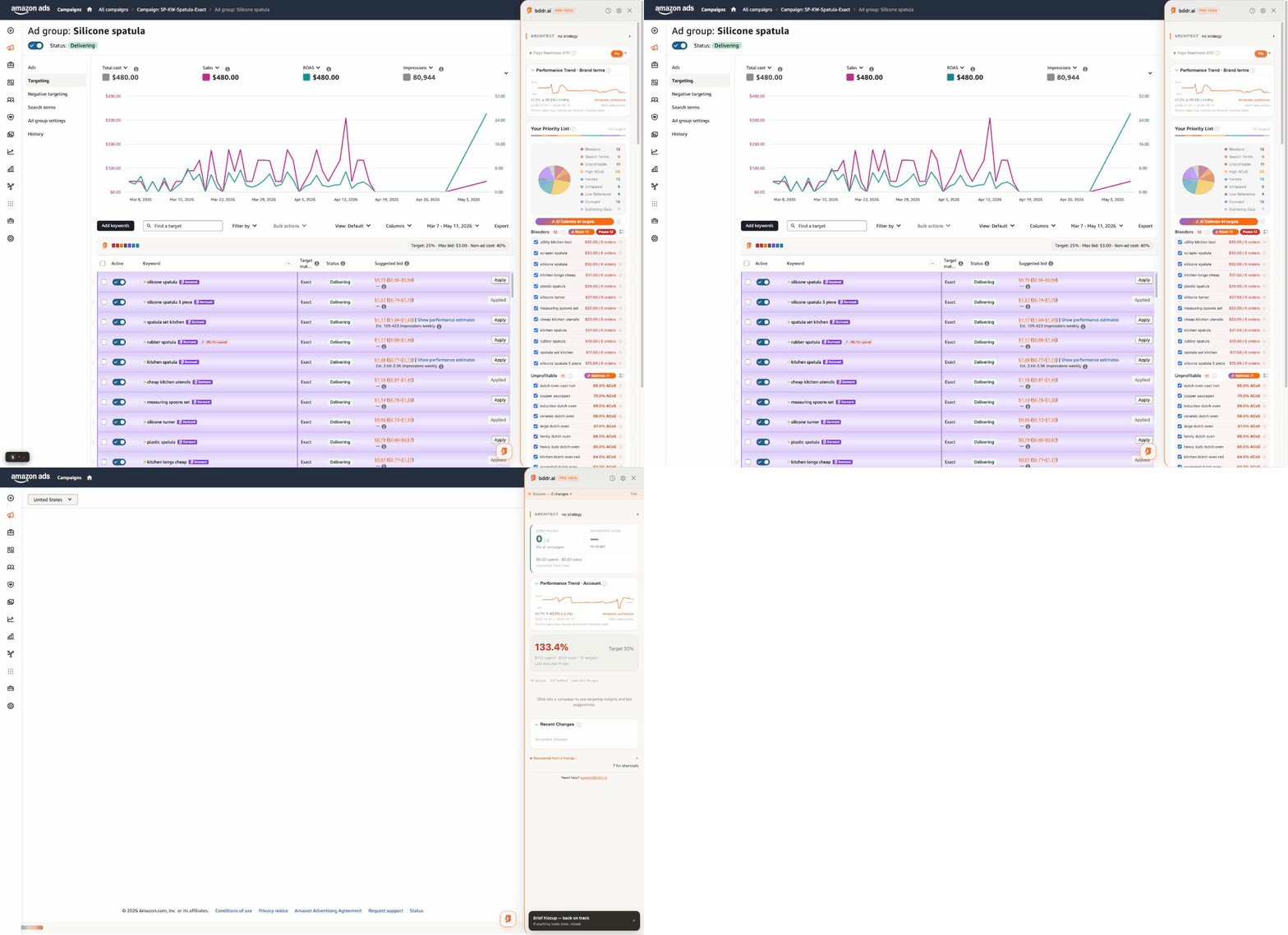
Global navigation chords
Available from any page — no row focus needed.
- g c
- Jump to Campaigns.
- g B
- Jump to Budgets.
- g T
- Jump to All Targets.
- g p
- Jump to Products.
- g f
- Jump to Portfolios.
- g r
- Jump to Reports.
- g i
- Jump to Insights.
Per-entity chords
Require a focused row on the matching page type.
On the Campaigns page
- g b
- Bid editing for the focused campaign.
- g a
- Ad groups within the focused campaign.
- g s
- Search terms for the focused campaign.
- g t
- All targets filtered to this campaign.
- g N
- Negatives (campaign-level).
- g n
- Negatives (ad-group-level).
- g j
- Bid adjustments for the focused campaign.
- g $
- Settings & budget for the focused campaign.
- g h
- History for the focused campaign.
On the Ad Groups page
- g t
- Targeting for the focused ad group.
- g s
- Search terms for the focused ad group.
- g n
- Negatives for the focused ad group.
- g $
- Settings for the focused ad group.
- g h
- History for the focused ad group.
- g u
- Up to parent campaign.
On the Targets page
- g n
- Ad group's negatives.
- g s
- Ad group's search terms.
- g t
- Ad group's targeting (this page).
On the Search Terms page
- g t
- Ad group's targeting.
- g n
- Ad group's negatives.
Chords change as we ship. Source of truth: global-destinations.ts and destinations.ts in the extension.
Single-key shortcuts
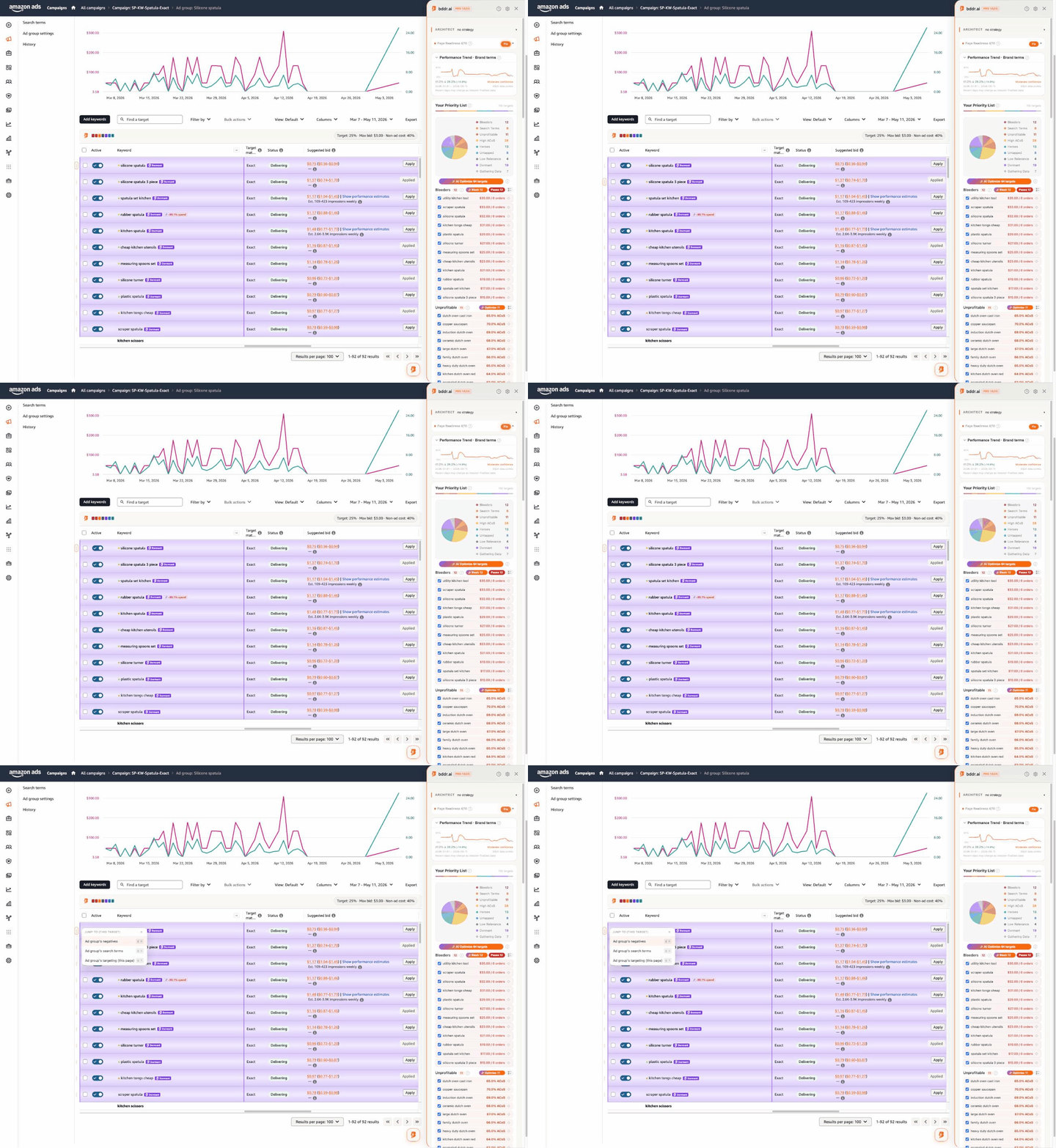
Single keys move row focus on grid pages and act on the focused row. ? opens the in-extension cheat sheet from any supported page, no focus required. bddr only intercepts these when no native browser control has focus — so typing in a search box or input works as expected.
- j
- Move focus to the next row.
- k
- Move focus to the previous row.
- Enter
- Open the focused row's JUMP TO menu — jump to that row's negatives, search terms, or targeting. Only fires when no native control has focus; native browser controls keep their normal behavior.
- Esc
- Cancel an armed chord, or clear a pending scroll-advance.
- ?
- Open the in-extension cheat sheet overlay.
Source of truth: KeyboardLayer.tsx in the extension.
Ready to try keyboard-driven Amazon ad management?
Install bddr — free